CRA GCKey Login Guide
Many users search for “GCKey CRA login” and wonder whether the GCKey they use for other Government of Canada services will also open their Canada Revenue Agency (CRA) account. Unfortunately, it will not. The CRA uses its own login system and multifactor authentication (MFA) to secure users’ accounts.
In this guide, we will cover whether GCKey is the same as the CRA login, which sign-in options are available, and what to do if you face any issues.
Already know your method? Read our CRA individual login guide or business login guide. No account yet? Start with the registration guide.
1. GCKey does not open CRA
2. Use a CRA sign-in method
3. Set up MFA
Can You Use GCKey to Log In to CRA?
No, you cannot use GCKey to log in to your CRA account. GCKey gives access to most Government of Canada services, but not the CRA, which runs its own security and sign-in system. This system includes MFA to protect users’ accounts. To log in to the CRA, you must use one of its own sign-in methods.
Bottom line: your GCKey will not open CRA My Account. Use a CRA sign-in method instead.
Is GCKey the Same as CRA Login?
No. GCKey is a general-purpose credential for many Canadian government services, including IRCC. But the CRA is not one of them; it uses its own login methods.
| Feature | GCKey | CRA login |
|---|---|---|
| Purpose | Accesses government services that support GCKey | Accesses CRA tax and business services |
| Login credentials | GCKey username and password | CRA user ID and password or Sign-In Partner credentials |
| Works with CRA? | No | Yes |
| Used for | Supported federal government portals | My Account, My Business Account, Represent a Client |
| MFA | Depends on the service using GCKey | Required for CRA sign-in |
How to Log In to Your CRA Account
You can log in to your CRA account using any of the following methods.
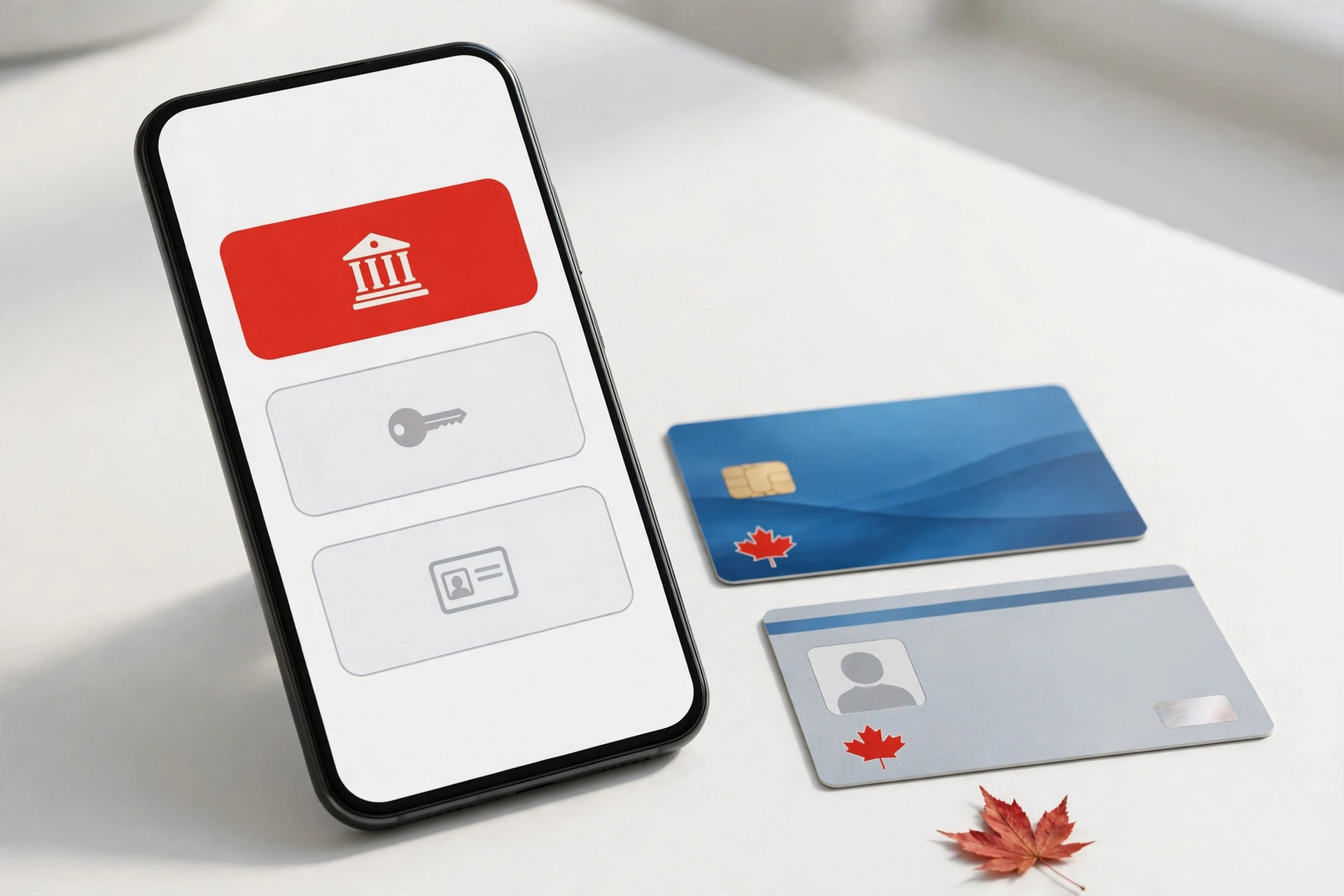
Sign-In Partner (Your Bank Login)
Visit the official CRA website.
Select the Sign-In Partner option.
Choose your bank or credit union.
Enter your online banking credentials.
Complete any additional verification.
Once you are verified, you can access your account.
To use this method, you must have an online banking account with a Canadian financial institution.
CRA User ID and Password
Open the official CRA website.
Select the option to sign in with a user ID and password.
Enter the user ID and password you created when you registered.
Complete the required MFA verification.
Answer the security question you set up.
Once your credentials are verified, you can access your account.
Forgot your details? Read our Forgot CRA login guide.
Provincial Partner
Visit the official CRA sign-in page.
Select the provincial partner option (Alberta or British Columbia).
Follow the instructions and sign in with your existing provincial credentials.
If this is your first time signing in to the CRA, enter your SIN and some of your tax information.
Complete any further verification to access your account.
This option is available only to residents of Alberta and British Columbia who have an Alberta.ca account or a BC Services Card.
What Is ePass?
ePass Canada was an electronic service used to access certain government portals until October 2010. The CRA replaced it with its own sign-in methods. Whether you need to access your individual account, your business account, or a client’s account, you can now sign in using the methods described above.
CRA Security Code vs One-Time Passcode (MFA)
The CRA security code and the MFA code serve different purposes. The security code verifies your identity during registration, while the MFA code is a one-time passcode you receive each time you sign in.
CRA Security Code
The CRA security code is a unique code that the CRA mails to your address to verify your identity. It is usually delivered within 10 business days. When you receive it, enter it when prompted. Once your identity is verified, you can access additional account services. The code can be used only once.
Multifactor Authentication (MFA)
Every time you sign in to your CRA account, you must enter an MFA code. This is a temporary, one-time password that helps protect your account from unauthorized access.
Ways to Receive Your MFA Code
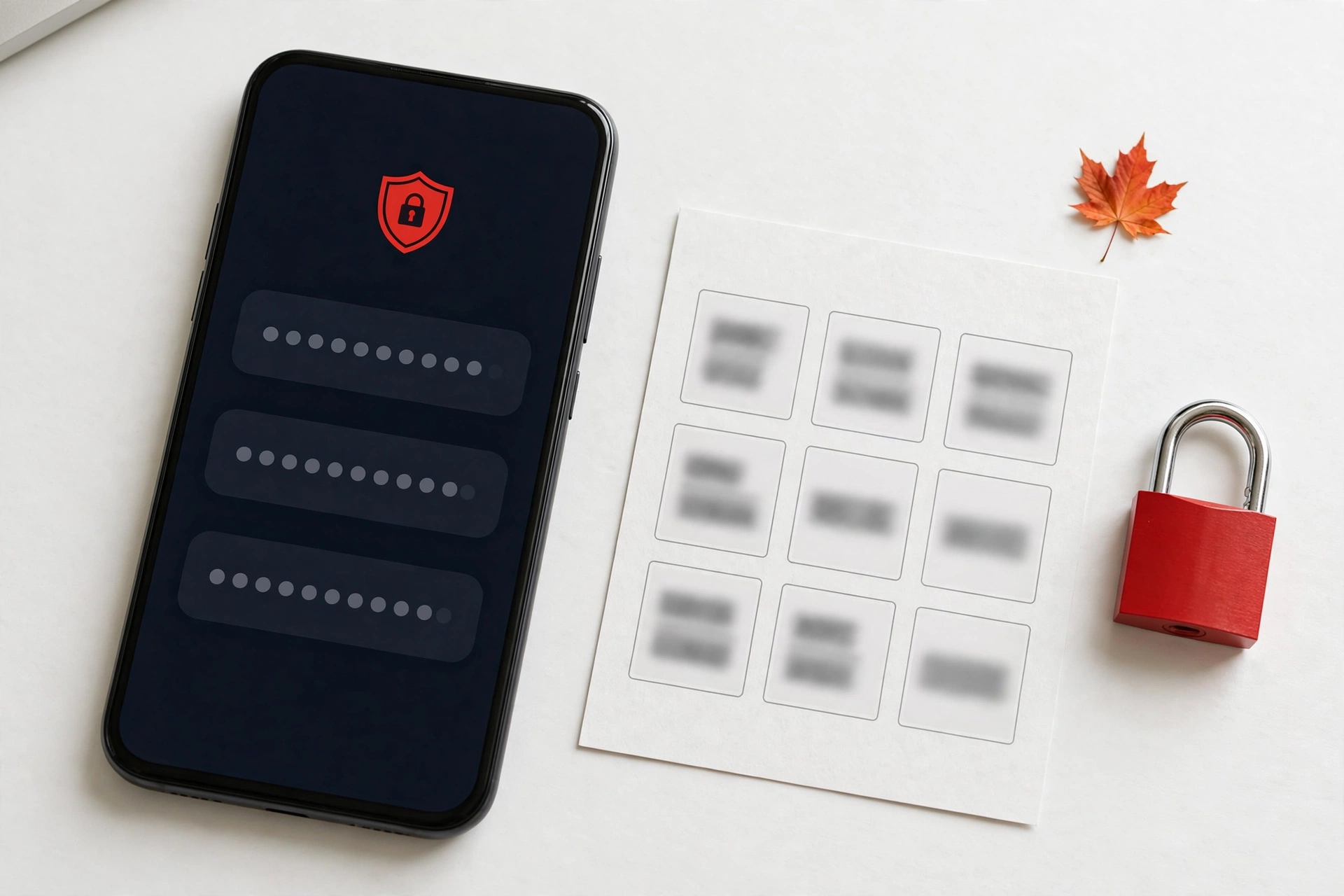
You can receive your MFA code through an authenticator app, a passcode grid, or a registered phone number.
CRA Login with an Authenticator App
Log in to your CRA account.
Open the security settings on the welcome page.
Click MFA settings.
Choose the authenticator app option.
Download an authenticator app from the Play Store (or App Store).
Scan the QR code shown on the screen, or enter the setup key manually.
The app will generate a six-digit code. Enter it in the required field.
The next time you sign in, open the authenticator app and enter the current code in your CRA account.
The app generates a new code every 30 seconds.
CRA Login with a Passcode Grid
Sign in to your CRA account.
On the welcome page, open the security settings.
Select the passcode grid option on the MFA screen.
Save or print the grid generated by the system.
Each time you sign in, select the passcode grid option.
Find the row and column combinations requested on the screen.
Enter the matching values from your grid to complete MFA verification.
The CRA uses a three-row and three-column grid for verification. You can use the same grid for 18 months, after which you must create a new one.
Keep your grid in a safe place, because anyone who has it can easily access your account.
How to Log In to CRA Using a Phone Number
Sign in to your CRA account using your preferred method.
When prompted for MFA, select the phone option.
Enter your registered phone number.
You will receive a one-time passcode (OTP) by SMS.
Enter the OTP in the required field.
Once verification is complete, you can access your account.
How to Log In to CRA Without a Phone Number
You can also log in without a phone number by using an authenticator app or a passcode grid. Both methods let you get an MFA code without a mobile phone number.
Common Problems and Solutions
CRA one-time passcode not received
If you did not receive your OTP, request it again or choose another MFA method. If you still cannot get the code, contact CRA support.
CRA security code not received
The CRA security code is usually delivered to your mailing address within 10 business days. If it has not arrived, try document verification if you are eligible. Otherwise, contact CRA support.
CRA authenticator app code not working
If the CRA does not accept your authenticator app code, enter the six-digit code quickly before it changes. Also check that your device’s date and time are set to automatic. If the problem continues, try another MFA method.
Locked out or forgot your password? Read our Forgot CRA login guide.
Conclusion
GCKey is a popular way to sign in to many Government of Canada websites, but you cannot use it to log in to your CRA account. The CRA has its own system and sign-in methods to protect its users’ accounts. You can sign in using your CRA user ID and password, your online banking (Sign-In Partner), or a provincial partner. The CRA also uses MFA to secure every account. If you are in Canada and want to access your CRA account, following this guide will help you sign in with confidence.
More CRA Guides
CRA individual login guide
Sign in to My Account, view CRA mail, and fix common login problems.
CRA business login guide
Add your Business Number and manage your business account online.
Forgot CRA login?
Reset your password, recover your user ID, or regain access to your account.
Ready to sign in to your CRA account?
Skip GCKey and choose a CRA sign-in method on the official CRA website.
This guide is independent and is not affiliated with the Canada Revenue Agency. Always sign in at canada.ca. Read our Disclaimer or contact us.


