
CRA Login Represent a Client Guide
If you are an accountant, bookkeeper, or other representative, you need to know how Represent a Client works. Represent a Client (RAC) is the account representatives use to manage a CRA account on someone else’s behalf. With it, you can manage your client’s details, including their tax information, notices, and benefits.
In this guide, we cover what a CRA Represent a Client account is, how to register as a representative, and how to log in to your RAC account.
New to CRA accounts? Start with our CRA login guide or the CRA account registration guide.
1. Register and get your RepID
2. Ask your client to authorize you
3. Manage the account online
What Is Represent a Client?
Represent a Client is a secure online service from the Canada Revenue Agency (CRA) for authorized representatives. Once you complete the Represent a Client login and your client has authorized you, you can manage their account online. You can check their notices, benefits, balances, and tax information on their behalf.
A representative account is different from a personal or business account. In those accounts, users manage their own affairs. A representative account is for people who manage someone else’s tax information online.
With Represent a Client, you can check:
- Their notices
- Their benefits
- Their balances
- Their tax information
Who Can Use Represent a Client?
Anyone can act as a representative if the person they represent authorizes them. Only people who have received this authorization can sign in as a representative.
According to the CRA, Represent a Client can be used by people who help with someone else’s tax and financial affairs, including:
- A lawyer
- A financial planner
- A bookkeeper
- A tax preparer
- An executor, power of attorney, or legal guardian
- A family member or friend
- A public trustee
- An authorized employee
- A non-resident living in the United States
How to Register: Represent a Client
If you are using Represent a Client for the first time, follow these steps to register:
Log in to your CRA account and open your Business Account
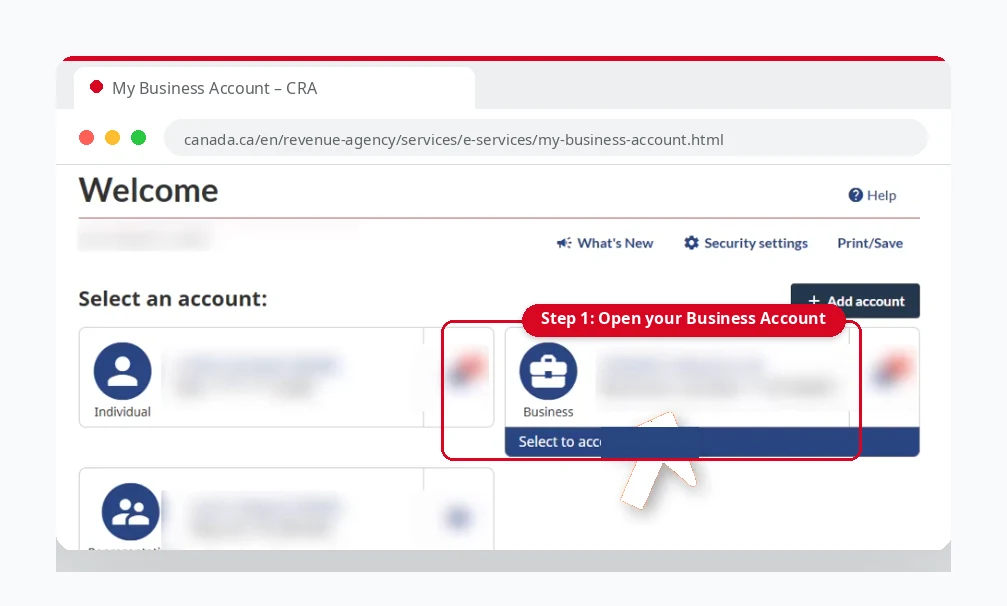
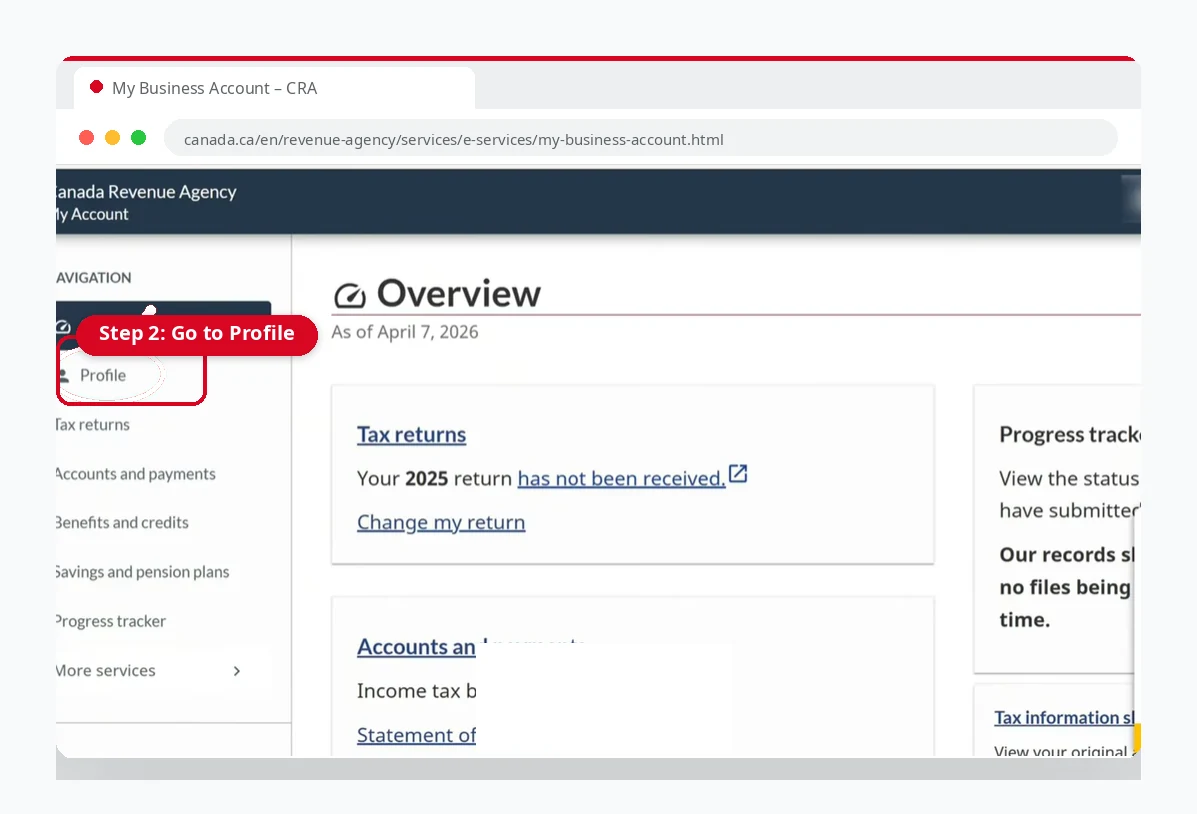
Go to Profile → Authorized Representatives
Click Manage authorized representatives
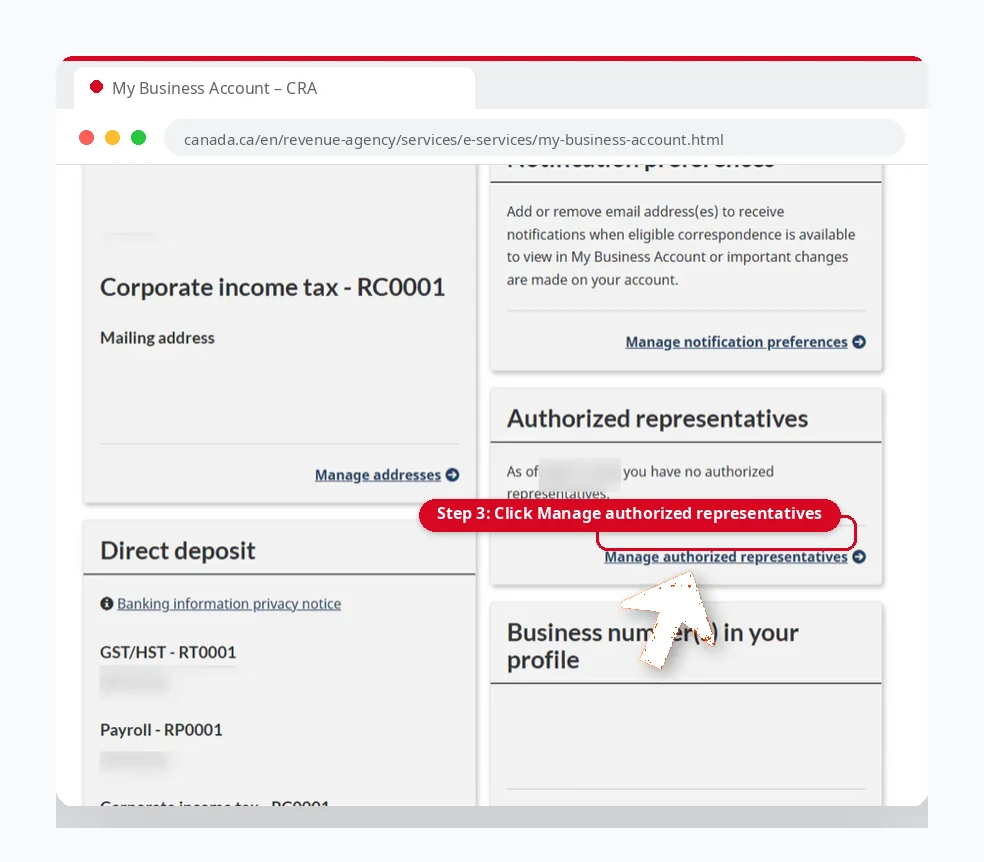
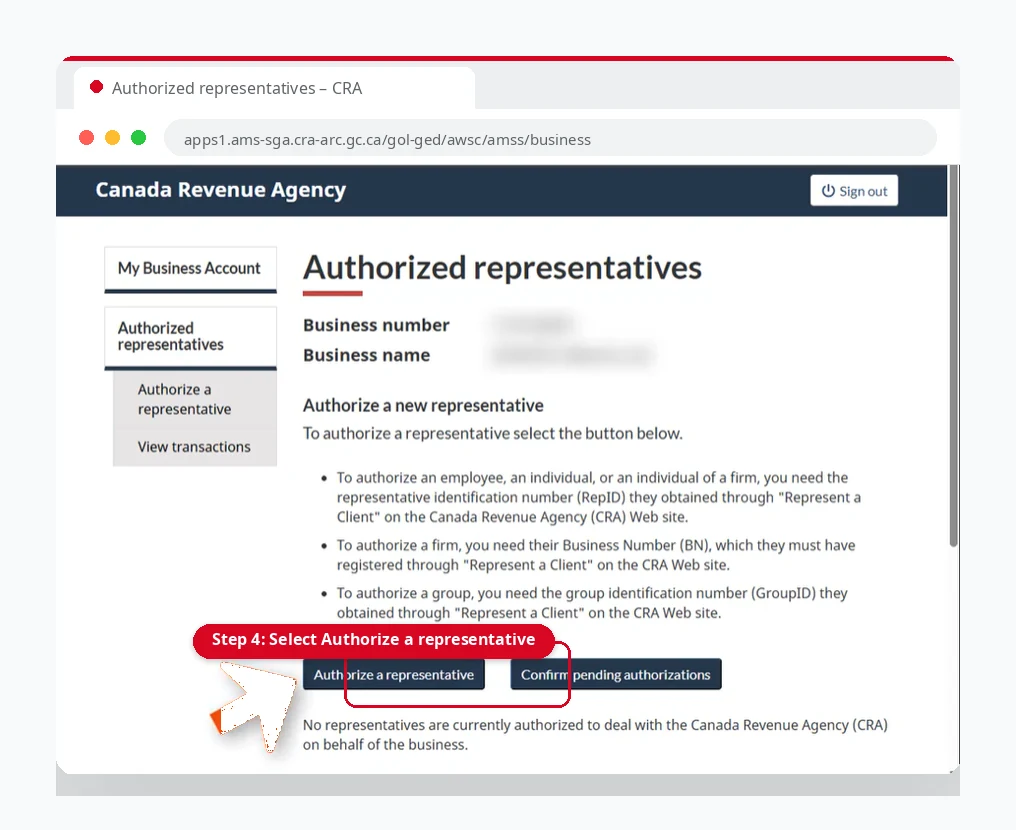
Select Authorize a representative
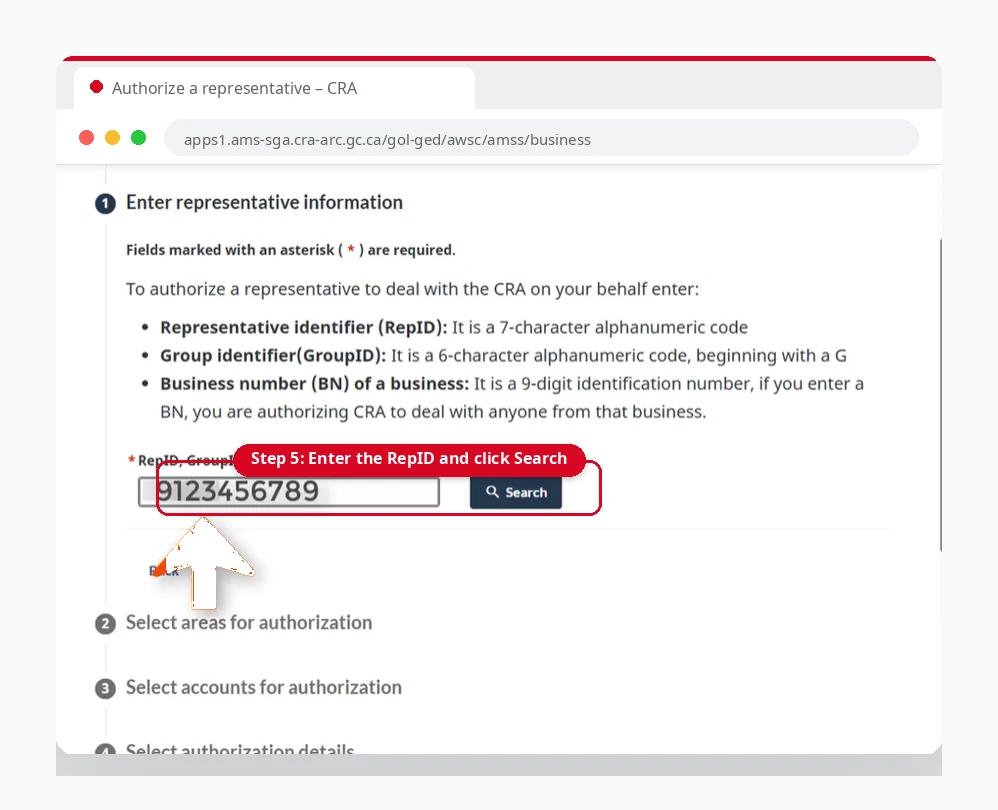
Enter the representative’s number and click Search
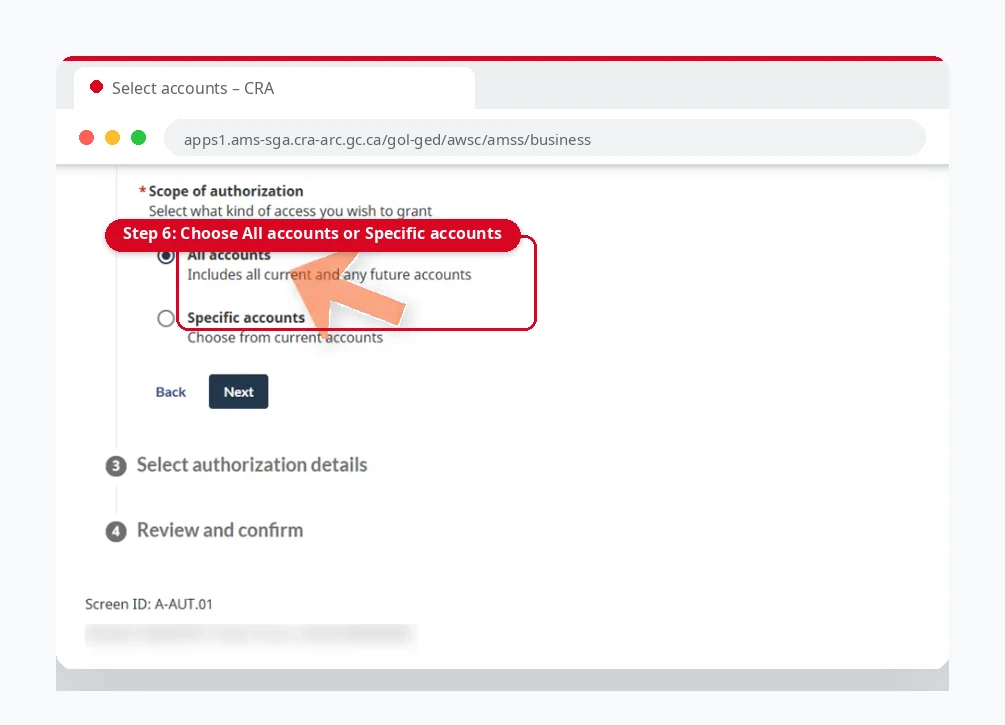
Choose All accounts or select Specific accounts
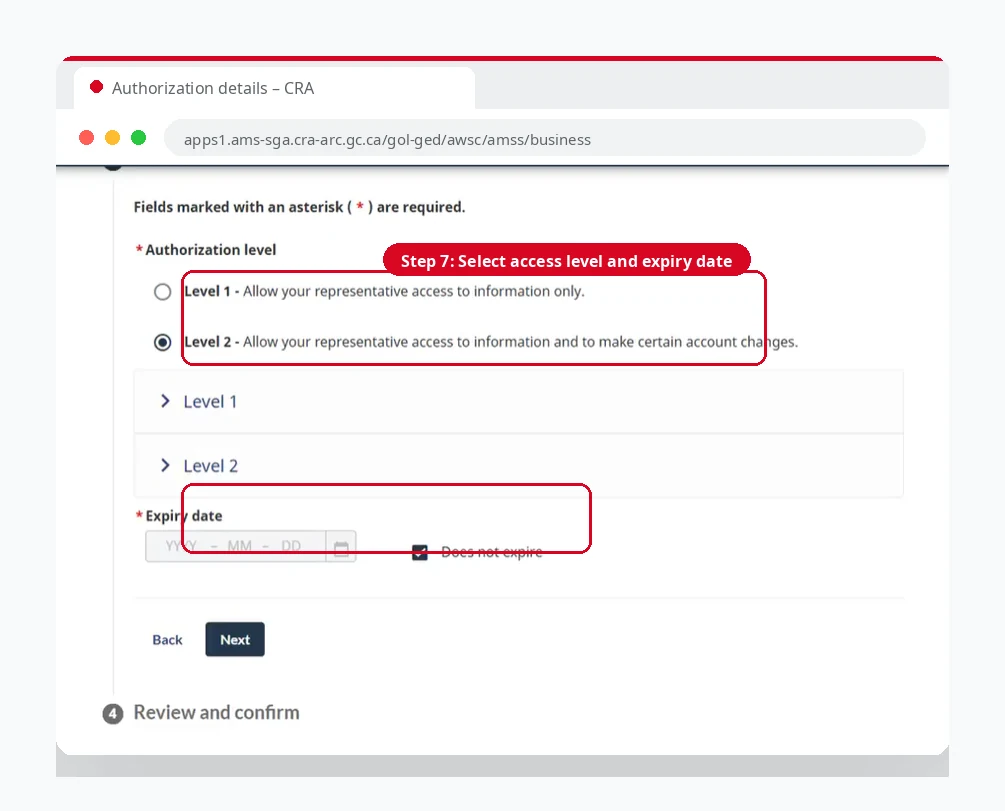
Select the access level and expiry date
Select the access level: Level 1 (view account information) or Level 2 (view information and make changes). Then choose an expiry date, or select Does not expire.
Level 1: View account information
Level 2: View information and make changes
Review the details, confirm the authorization, and click Submit
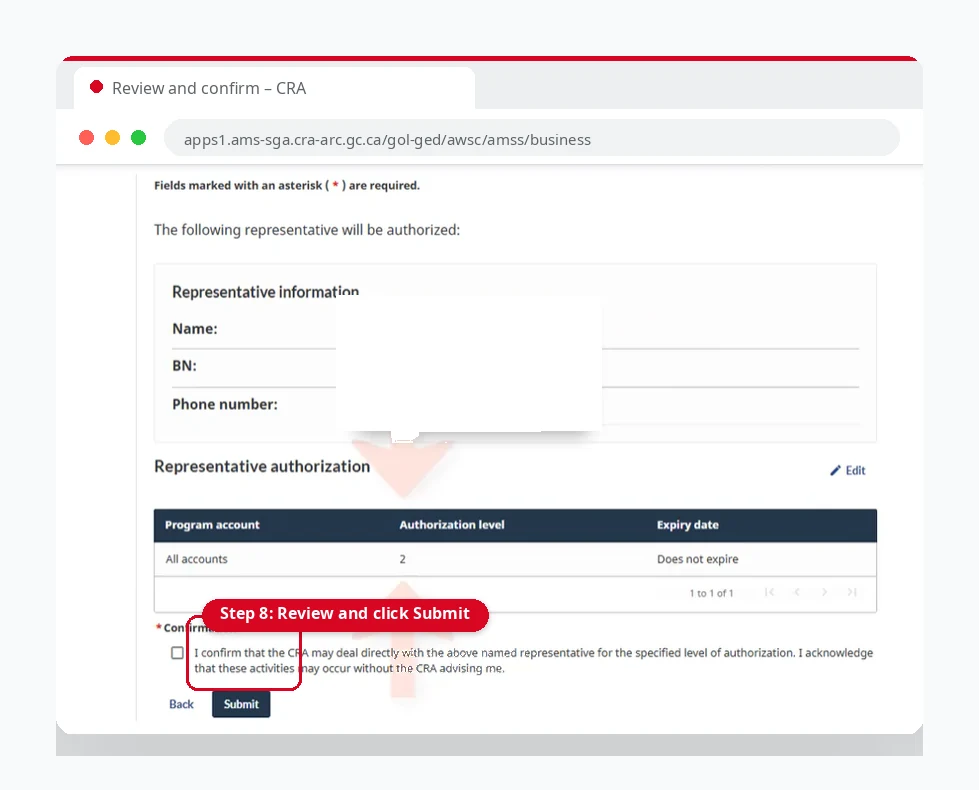
Notify your representative that you have authorized them
CRA may not notify them automatically.
What Is a RepID, and How to Get It?
A RepID, short for Representative Identifier, is a unique seven-character code that identifies you as a registered representative. The CRA issues a RepID to everyone who registers as an authorized representative.
7
characters in every RepID

Ways to Get Your CRA RepID Login
Sign in to your CRA account
Select Add account
Select Register with Represent a Client
Choose to register yourself
Your RepID appears on the confirmation page
Your RepID is unique to you. Without a representative identifier, you cannot access your client’s account online.
How to Get Authorized Access to a Client’s Information
After you register as a representative, you must receive authorization before you can see any client information.
You can use any one of three identifiers to get authorized: your RepID, your Business Number (BN), or a GroupID.
Give the identifier to your client
Your client enters it in their own CRA account to add you as their authorized representative
Once they confirm, you can access the account and manage their tax affairs and notices
Get Authorized for Offline Access Only
If you only need offline access, your client can fill out Form AUT-01, Authorize a Representative for Offline Access. This form lets you access your client’s tax information by phone, mail, fax, or in person.
It does not give you online access to the account.
Types of RAC IDs for Gaining Authorization
Representatives are authorized with one of three identifier types. Your client enters the identifier you provide in their own CRA account to authorize you.
RepID
For an individual representative.
Business Number (BN)
For a business.
GroupID
For a group of representatives within a firm.
CRA Login: Represent a Client for Businesses
Representing a client as a business is simple. Follow these steps:
Go to the CRA sign-in page and sign in to your CRA account
If your business is not registered yet, select Add account on the Welcome page
Then select Representative Account and Register with Represent a Client.
Select Register your business and complete the registration steps
Return to the Welcome page and open your representative account
Make sure your client has authorized your business using your Business Number (BN)
Once the authorization is active, select the client and the account you need
How to Update Your Information and Client Information
Update Your Representative Information
To update your representative details:
Sign in to your CRA account
Select your Representative account
Open your profile
Under representative details, select Edit
Cancel RepID
You can cancel your RepID if you no longer want to manage client accounts.
Sign in to your CRA account
Select your Representative account
Open your profile
Select Representative information
Select Cancel RepID and follow the on-screen instructions
Update Client Information
As an authorized representative, you can view and update your client’s details. For individual clients, you can also view their mail and notices of assessment (NOAs) through Represent a Client.
View Your Client Authorization Details
To check the details of your client authorizations:
Sign in to your CRA account
Select your Representative account
Open your profile
Under Association, select your BN
Find the client to see their authorization details
Review Transactions for Clients
To review the transactions you have made for a client:
Sign in to your CRA account
Select your Representative account and open your profile
Under Association, select Clients
Choose the client type (individual, business, or trust)
Select the transaction you want to review. Your transaction history for that client will appear.
Review and Update Business Account Information
Update Your BN and Contact Information
If you want to change your business name in Represent a Client, you must first update the CRA Business Number (BN) database.
Sign in to your CRA account
Select your business account and open your profile
Select business operating information and update your BN details
After that, update the same details in Represent a Client:
Sign in to your CRA account
Select your representative account and open your profile
Select the business you want to update
Select Edit and enter the new details
Common Login Problems and Fixes
The client account is not showing
Sign in to your CRA account and check that your representative account has been added. Also confirm that your client has authorized you. You cannot see a client’s information until they add you as an authorized representative in their CRA account.
Authorization is still pending
Make sure you have given your RepID to your client. They have 10 business days to confirm the request.
Locked out or forgot your password? Read our Forgot CRA login guide.
Conclusion
CRA Represent a Client is a secure online service for people and businesses who manage a CRA account on someone else’s behalf. The process is simple: register as a representative, get your RepID, and ask your client to authorize you. Once you are authorized, you can manage your client’s tax information, notices, benefits, and financial affairs online. If you only need phone, mail, fax, or in-person access, your client can authorize you with Form AUT-01.
More CRA Guides
CRA login guide
Sign in with a Sign-In Partner, a CRA user ID and password, or a provincial partner.
CRA account registration guide
Register for a CRA account, prepare what you need, and verify your identity.
Forgot CRA login?
Reset your password, recover your user ID, or regain access to your account.
Ready to manage a client’s CRA account?
Register, get your RepID, and ask your client to authorize you. Then continue on the official CRA website.
This guide is independent and is not affiliated with the Canada Revenue Agency. Always sign in at canada.ca. Read our Disclaimer or contact us.


